
There’s a special kind of pain reserved for the moment I send myself a test email and find it in spam.
I wrote it. I approved it. I hit send. And my own inbox treated it like a Nigerian prince. No reply, no open, just quietly filed under “things you’ll never see.”
The frustrating part is that nothing obvious changed. Same list, same template, same sending time. But replies dropped, open rates collapsed, and when I finally checked manually I confirmed what the numbers were already telling me.
When emails going to spam becomes consistent, it’s rarely the subject line. It’s a trust problem with your domain, your sending history, and how inbox providers have been scoring you over time. Spam filters in 2026 evaluate your domain’s track record first, and your content last.
This post breaks down the five real reasons emails go to spam and exactly how to fix email deliverability before your next send.
Why Are My Emails Going to Spam?
Emails go to spam when inbox providers detect low trust signals from your sending domain. These signals include failed authentication records, poor sender reputation, inconsistent sending patterns, blacklist listings, and suspicious content.
Inbox providers don’t evaluate your email once. They evaluate your history over time. If that history looks risky, your emails get filtered before the content even enters the picture.
Most spam placement issues involve more than one of these factors happening together.
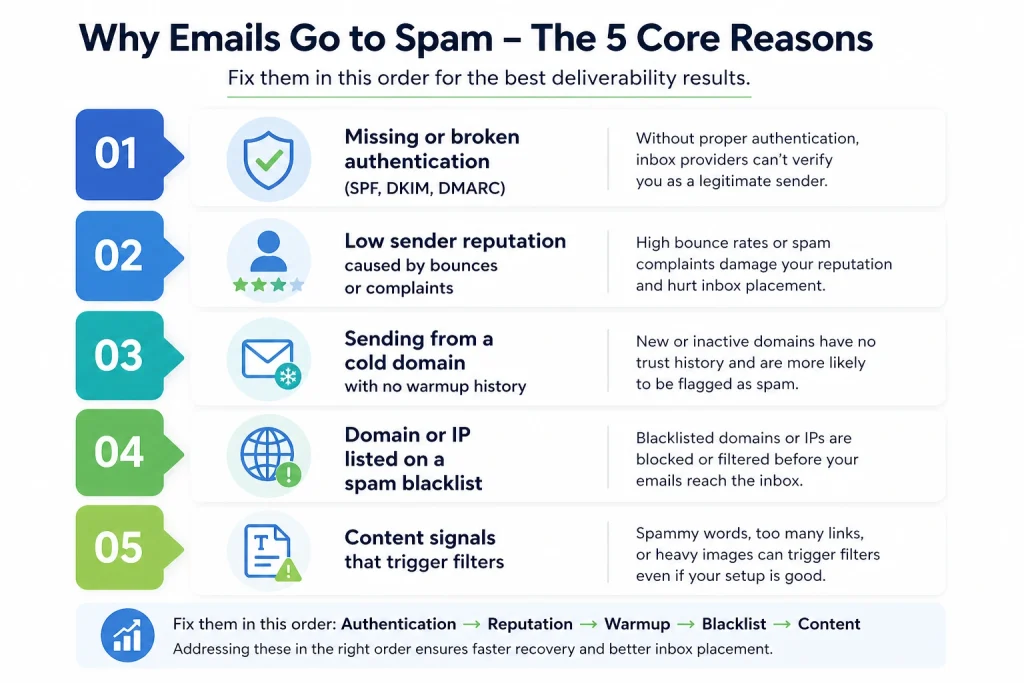
The five core reasons:
- Missing or broken authentication (SPF, DKIM, DMARC)
- Low sender reputation caused by bounces or complaints
- Sending from a cold domain with no warmup history
- Domain or IP listed on a spam blacklist
- Content signals that trigger filters
Fix them in this order. Authentication first. Reputation second. Warmup third. Content last.
Reason 1: Missing or Broken Authentication (SPF, DKIM, DMARC)
Authentication is the first layer of trust inbox providers check. Before your email reaches anyone’s inbox, Gmail, Outlook, and Yahoo verify three things.
SPF defines which servers are authorized to send email on behalf of your domain. DKIM verifies the message wasn’t altered in transit using a cryptographic signature. DMARC sets the enforcement policy for what happens when SPF or DKIM fails.
If any of the three are missing or misconfigured, your email fails identity verification. Inbox providers don’t give the benefit of the doubt. They filter first.
In 2024, Google updated their sender requirements for bulk senders to include mandatory DMARC at a minimum p=none policy. Domains without it face bulk filtering regardless of content quality. Domains with all three records configured see 20 to 30% better inbox placement.
How to verify and fix:
- Step 1: Run a domain authentication check using E-Warmup’s authentication checker or a DNS lookup tool
- Step 2: Confirm SPF, DKIM, and DMARC are all published and passing
- Step 3: Fix any failing records in your domain provider’s DNS settings
- Step 4: Re-test after 24 to 48 hours to confirm propagation
If your DMARC policy is still at p=none, move it to p=quarantine as the next step toward full enforcement.Reason 2: Poor Sender Reputation Score
Sender reputation is the trust score inbox providers assign to your sending domain based on your sending history. It is updated continuously with every campaign you send.
High bounce rates, spam complaints, sudden volume spikes, and low engagement all pull that score down. Google Postmaster Tools shows domain reputation as High, Medium, Low, or Bad. A Low or Bad rating means your emails are filtered before content is ever evaluated.
According to Google’s published sender guidelines, spam complaint rates must stay below 0.1% to maintain healthy inbox placement. In real campaigns, even small spikes matter. A list of outdated contacts can generate enough complaints in one send to automatically push your next campaign into spam.
What damages sender reputation most:
- Hard bounce rate above 2%
- Spam complaint rate above 0.1%
- Sudden sending volume spikes without warmup history
- Long gaps between sends followed by high-volume campaigns
How to fix it:
- Step 1: Pull your domain reputation from Google Postmaster Tools
- Step 2: Clean your list, remove hard bounces, suppress inactive contacts
- Step 3: Reduce sending volume temporarily while reputation stabilizes
- Step 4: Track your score in real time using E-Warmup’s reputation monitoring dashboard
Reason 3: Sending from a Cold or Unwarmed Domain
Email warmup is the process of gradually building a domain’s sending reputation by starting at low volume and increasing over time while generating positive engagement signals. It tells inbox providers that your domain is legitimate and that recipients engage with what you send.
A new domain has no sending history. Inbox providers have no data on it. When it starts sending, especially at any meaningful volume, spam filters treat it as suspicious by default.
Domains without warmup history consistently see spam placement rates of 40% or higher in the first two weeks of cold outreach.
With proper AI-powered warmup, that rate drops below 5% in the same window. E-Warmup uses a network of 10,000+ real inboxes to simulate genuine engagement. Not bots. Not fixed IP seed lists.
Real inbox interactions are what Gmail, Outlook, and Yahoo recognize as authentic trust signals. Setup takes under 30 seconds. If you want to understand how the full process works, the email warmup tool guide covers it end-to-end.
How to fix it:
- Step 1: Start with a low sending volume, 10 to 20 emails per day in the first week
- Step 2: Increase gradually over 2 to 4 weeks
- Step 3: Run an inbox placement test after week two to confirm improvement
- Step 4: Scale volume only when placement score hits 90% or higher
One question that comes up constantly at this stage is how long to actually warm up before sending at volume. The answer depends on your domain age, target volume, and reputation signals. The guide on how long you should warm up email breaks it down week by week.
Reason 4: Domain or IP Blacklisting
An email blacklist is a database of domains and IP addresses flagged as sources of spam. Inbox providers and email security services check these databases when receiving mail. A listing means your emails are blocked or filtered automatically, regardless of everything else being clean.
Major blacklists include Spamhaus, Barracuda, SURBL, and URIBL. Getting listed can happen within 24 hours of a spam complaint spike or a sudden volume surge. Most teams don’t find out until open rates collapse days or weeks later.
Removal process by the provider:
- Spamhaus: typically resolves within 24 to 72 hours with a valid removal request
- Barracuda: two to five business days via their lookup and removal form
- SURBL and URIBL: contact-based removal with a root cause diagnosis requirement
Fix the underlying issue before submitting a removal request. Requesting removal without fixing the cause leads to re-listing within days.
How to check and remove:
- Step 1: Run a blacklist check across 50+ providers using E-Warmup’s blacklist monitoring
- Step 2: Identify which blacklists you’re on and when you were listed
- Step 3: Diagnose and fix the root cause (complaints, bounces, volume spike)
- Step 4: Submit removal requests per provider
- Step 5: Re-warm your domain with E-Warmup before resuming full-volume sends
Reason 5: Content Signals (Secondary)
Content is the least weighted signal in modern spam filtering. If authentication is clean, sender reputation is healthy, and the domain is warmed up, content issues alone are unlikely to cause spam placement. But if you’re already borderline on the other four factors, content can tip the balance.
Spam filters flag excessive link density, image-heavy emails with little body text, HTML formatting errors, missing plain-text versions, and phrase patterns associated with bulk or unsolicited email.
How to keep content clean:
- Keep link-to-text ratio balanced
- Avoid image-heavy layouts with minimal body copy
- Make sure the unsubscribe link is present and functional
- Run an email spam test before every send
If your technical foundation is strong, content rarely pushes emails into spam on its own.
How to Fix Email Deliverability: Step-by-Step
Step 1: Fix authentication. Verify SPF, DKIM, and DMARC are all passing. Fix any failures before anything else. Authentication issues are resolved within 24 to 48 hours after DNS changes propagate.
Step 2: Run a domain reputation check. Pull your score from Google Postmaster Tools and E-Warmup’s reputation dashboard. Understand where you stand before you send anything.
Step 3: Run an inbox placement test. See where your emails are actually landing across Gmail, Outlook, and Yahoo. A delivery rate above 99% can coexist with a 40% spam placement rate. Test before you assume.
Step 4: Start or resume email warmup. If your domain is new, cold, or reputation-damaged, start a warmup sequence before scaling. E-Warmup’s AI warmup with 10,000+ real inboxes builds the engagement signals inbox providers trust. The full breakdown with volume benchmarks is in the guide on how long you should warm up email.
Step 5: Monitor continuously. Set up real-time email deliverability monitoring so issues are caught before they compound. Reactive monitoring, checking only when things break, is always three weeks too late.
[IMAGE ASSET: Numbered steps graphic — 5-step fix process with one-line action per step]
Pre-Send Email Deliverability Checklist
Before sending any campaign, confirm these are in place:
- SPF, DKIM, and DMARC configured correctly and passing
- Sender reputation score is stable (High on Google Postmaster Tools)
- Domain not listed on any major blacklists
- Inbox placement test run with 90%+ primary inbox result
- Warmup process active for the sending domain
- Sending volume is within the safe daily limit for this domain
- Hard bounce rate from the last campaign is below 2%
- Spam complaint rate from the last campaign is below 0.1%
If any of these fail, emails going to spam becomes likely on the next send.
Checking all 8 of these manually before every send isn’t realistic.
E-Warmup monitors authentication status, sender reputation, blacklist listings, and inbox placement rate automatically from one dashboard. You get real-time alerts when something drops before it hits your campaign. No manual checks. No surprises.
How Long Does It Take to Fix Email Deliverability?
With the right tools and the right order of operations, most senders see meaningful inbox placement improvement within two to four weeks. Authentication fixes take effect within 24 to 48 hours after DNS propagation. Reputation recovery through consistent warmup typically takes two to four weeks depending on the severity of the damage.
Without monitoring tools, the same recovery often takes months and stays incomplete. Monitoring gaps mean problems go undetected. Manual warmup is inconsistent and hard to scale. Blacklist removals get missed entirely.
Deliverability is not a one-time fix. It requires continuous tracking to stay clean. The email warmup tool guide walks through what healthy warmup progress looks like.
Frequently Asked Questions
Fix the Foundation. Then Send.
If your emails are going to spam, the fix is almost always in the infrastructure. Authentication, sender reputation, warmup history, blacklist status. These are the signals inbox providers use to make placement decisions. Content is the last variable they evaluate.
E-Warmup covers all five layers automatically from one dashboard. Authentication monitoring, real-time sender reputation tracking, inbox placement testing, blacklist detection across 50+ providers, and AI-powered warmup through 10,000+ real inboxes.
The 98% inbox placement rate across the E-Warmup network is what consistent infrastructure management produces. Setup takes under 30 seconds. No credit card required.
