

To fix emails going to spam, match the tool to the cause. Authentication problems need a DNS checker, reputation problems need Postmaster Tools and warmup, blacklist problems need a blocklist lookup, content problems need a spam test, and list problems need verification. If you cannot tell which, run an inbox placement test first.
Key Takeaways
- Spam placement has five common causes: authentication, reputation, blacklist, content and list quality.
- A clean result from the wrong tool proves nothing, so test the cause that matches your symptoms.
- Google tells bulk senders to keep reported spam rates below 0.10% and never reach 0.30%.
- Most tools here have a free tier, but a spam score alone cannot see your sender reputation.
- Work in order and retest after each fix. Day 7 is a checkpoint, not a finish line.
You changed the subject line. Then the preheader. Then the whole template, twice. The emails still went to spam.
At some point, trying to fix emails going to spam stops being a copy problem. A content scanner will not find a missing DKIM record, and a DNS lookup will not tell you that your list is full of dead addresses.
The expensive mistake is running the wrong test and trusting the clean result. This guide matches each cause to the tool that finds it, then gives you a seven-day order to work through them. It builds on our guide to why emails go to spam, which explains the reasons and the order to fix them. This one covers the tools.
Fix Emails Going to Spam by Diagnosing the Cause First
Five causes cover most spam placement, and your symptoms point to one of them. Use this table to pick where to look first.
| Cause | What you see | First check |
|---|---|---|
| Authentication | spf=fail or dkim=none in the headers, rejections at Gmail or Outlook | Read the raw headers of a test email |
| Reputation | Spam at one provider, inbox at others, or trouble after a volume jump | Google Postmaster Tools |
| Blacklist | Bounces that name a blocklist, rejections across several providers | Blocklist lookup on domain and IP |
| Content | Some campaigns go to spam, the rest do not | Spam score test on the exact email |
| List | High bounces, complaints, or a recently purchased or old list | Bounce and complaint rates |
Providers do not treat the same email the same way, so spam at one provider and inbox at another is a clue and not a contradiction. Validity’s 2026 Email Deliverability Benchmark Report puts Gmail inbox placement at 89.8% and Microsoft at 77.4% for 2025.
Causes also stack. A domain with missing DKIM and a stale list fails twice, so fixing one and retesting can still show spam. Fix in order, and retest after each change.
Two numbers frame the list problem. Google’s email sender guidelines say to keep reported spam rates below 0.10% and avoid ever reaching 0.30%. Validity reports an average complaint rate of 0.06% for 2025.
Best Tools to Fix Emails Going to Spam, by Cause
Authentication: SPF, DKIM and DMARC
Authentication is the cheapest cause to rule out, so start here.
Gmail requires bulk senders, meaning 5,000 or more messages a day to Gmail addresses, to pass SPF, DKIM and DMARC. Outlook.com, Hotmail and Live added similar rules for senders above 5,000 a day from May 5, 2025, and non-compliant mail can be rejected with error 550 5.7.515.
Your first tool is free and already open: Gmail’s “Show original” view lists SPF, DKIM and DMARC as pass or fail for any message you receive. Send yourself a test from the sending address and read the three lines.
If one fails, E-Warmup’s free SPF Records Checker and DMARC Record Generator build the record from the services you send through.
Start DMARC at p=none, read the reports, then tighten. Validity recommends at least p=quarantine and ideally p=reject.
Reputation: Postmaster Tools, Sender Score and warmup
Reputation problems show up on new domains, after a volume jump, or as spam at one provider while others stay clean.
Google Postmaster Tools is the free first stop for Gmail. It is also changing: Google is retiring the original Domain and IP Reputation dashboards, per its Postmaster Tools help page, so check what your account shows today.
Sender Score gives your sending IP a 0 to 100 score. Validity’s report advises keeping it above 90 and treats anything below 80 as a warning sign.
Those tools show the damage. Repairing it takes sending history. E-Warmup builds that over a 30-day ramp, 15 days of progressive volume and 15 days of randomized engagement across 40,000+ real inboxes. By E-Warmup’s own numbers, a new domain starts at 40 to 60% inbox placement and reaches about 90% after 30 days. Those are E-Warmup figures, not an industry benchmark.
Blacklist: lookups and monitoring
Blacklist problems look like sudden rejections across providers, or bounce messages that name a blocklist. Check the sending domain and the sending IP separately, because listings attach to both.
Spamhaus runs its own IP and Domain Reputation Checker, which accepts IPs, domains and email addresses and explains why something is listed.
Lookups are a snapshot. For ongoing watching, E-Warmup’s blacklist monitoring and delisting covers domain-level lists on Basic and up. It does not cover individual IP entries, so check a shared ESP IP yourself.
A listing is a symptom. Request removal after you fix the cause, or the listing tends to return.
Content: spam score tools
Content problems are the easiest to prove. The same domain sends other campaigns to the inbox, and one email lands in spam.
E-Warmup’s free Email Template Spam Checker takes a pasted subject line and body, scores it out of 10 with SpamAssassin-based rules and flags the phrases and formatting that raise the score. A score under 3 is considered good, and above 5 needs fixing before you send.
Test the exact email that went to spam, not a cleaned-up version. If it scores badly, the flagged phrases and link or image patterns show you what to change.
List: verification and complaint rates
List problems show up as high bounce rates, spam complaints and mail sent to addresses that no longer exist. Keep complaints under the 0.10% marker from Google’s guidelines, and stop sending to anyone who has complained.
Before you send to a list you have not mailed recently, run it through a verification service such as ZeroBounce or NeverBounce. Remove invalid and risky addresses, and never send to a purchased list.
E-Warmup’s Deliverability Agent flags high bounce rates in plain English on every plan, including Free Forever, which tells you when the list is the problem.
Best Tool If You Do Not Know the Cause
When the symptoms do not point to one cause, run an inbox placement test first. It shows where a message landed at each provider, which narrows the cause faster than checking five tools in sequence.
GlockApps is a long-standing option for seed-based placement and spam testing. Capterra lists its Essential plan at $85 a month with 30 spam test credits and a free version with two. Check the price on its site before you decide, since plans change.
E-Warmup includes inbox placement tests and DNS score tests on every plan. Free Forever gives you 5 of each a month on one mailbox, Basic gives 10 of each, and Premium gives 50. Reputation monitoring and the Deliverability Agent sit in the same dashboard, with blacklist monitoring from Basic up, so one login covers most of the diagnosis.
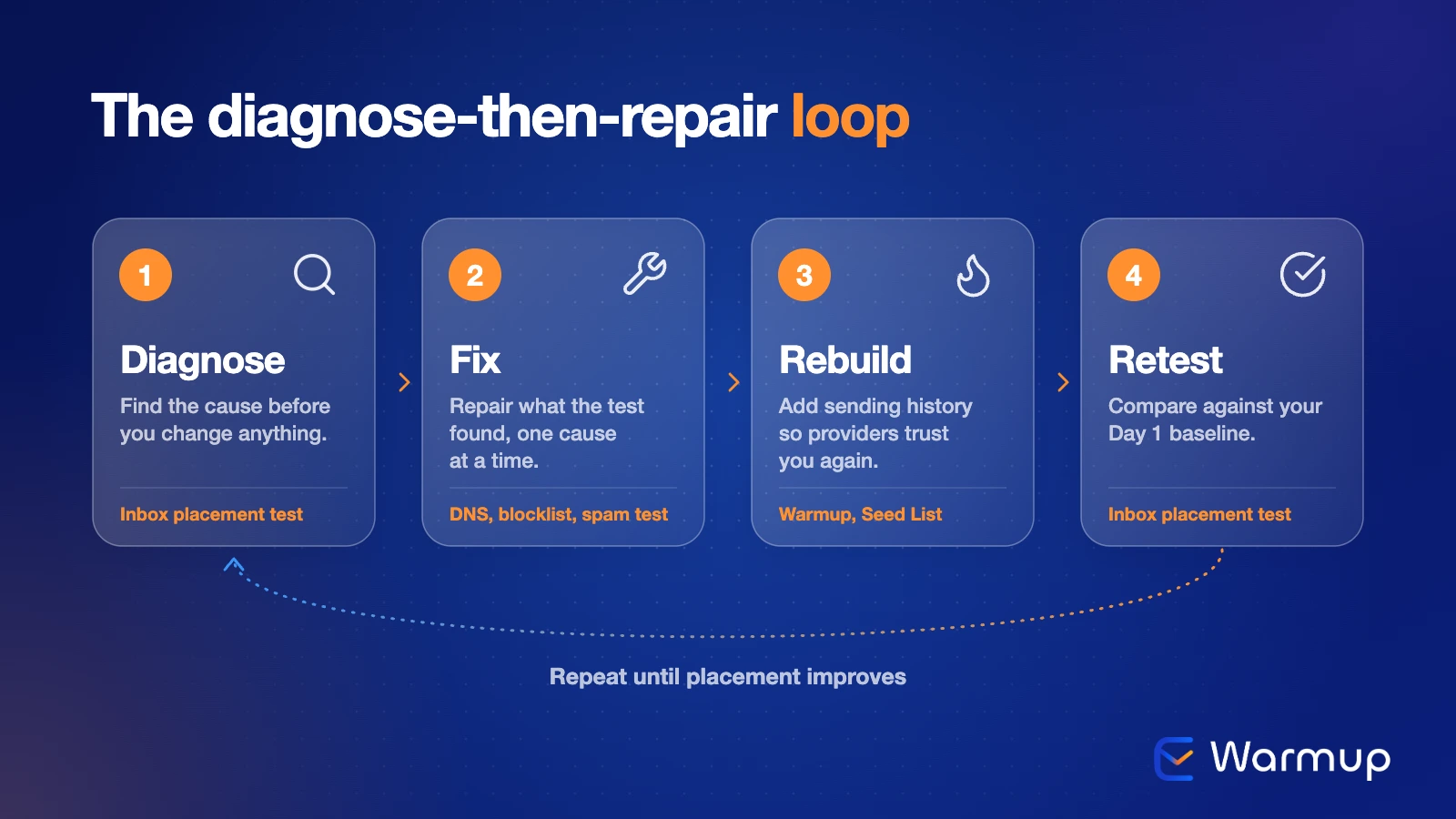
Then comes the repair half of the loop. Fix what the test found, rebuild sending history with warmup, and retest.
Some senders cannot connect a mailbox at all. If you send through Klaviyo, Mailchimp or a similar platform, Seed List Warmup works from a CSV upload with no SMTP or IMAP access. Credits never expire and start at $6 for 50 seeds.
Our guide to warming up without SMTP covers the setup, and the walkthrough on Mailchimp emails going to spam covers that platform.
A 7-Day Fix Sequence
Seven days is enough to diagnose and start repairing. It is not enough to finish, because reputation takes weeks to move.
| Day | Do this | Done when |
|---|---|---|
| 1 | Send a test to Gmail and Outlook, read the headers, run a placement test | Baseline results saved |
| 2 | Fix SPF, DKIM and DMARC | All three pass |
| 3 | Check domain and IP against blocklists, open Postmaster Tools | Listings and reputation noted |
| 4 | Verify the list, remove bounces and complainers | Risky addresses suppressed |
| 5 | Test the exact email and fix flagged content | Score in the safe range for that tool |
| 6 | Resume at reduced volume with warmup running | Small batches only |
| 7 | Rerun the placement test and compare with Day 1 | Change measured |
Comparison Table
| Tool | Fixes which cause | Cost | Limit |
|---|---|---|---|
| Gmail “Show original” | Authentication | Free | Shows pass or fail only |
| Google Postmaster Tools | Reputation (Gmail) | Free | Gmail only, dashboards changing |
| Sender Score | Reputation | Check on site | One score, no cause |
| Spamhaus checker | Blacklist | Check on site | Spamhaus lists only |
| ZeroBounce, NeverBounce | List | Check on site | Cleans the list, not the domain |
| GlockApps | Unknown cause | From $85 a month per Capterra | Paid, testing only |
| E-Warmup | Authentication, reputation, blacklist, content, unknown | Free Forever, paid from $49 a month (basic plan) | Blacklist covers domains, not IPs; spam score checks content only |
FAQ
What is the best tool to fix emails going to spam?
There is no single best tool, because spam has several causes. Use a DNS checker for authentication, Postmaster Tools for reputation, a blocklist lookup for listings, a spam score test for content and a verification service for lists. An inbox placement test tells you which one to start with.
How do I find out why my emails are going to spam?
Read the headers of a test email for SPF, DKIM and DMARC results, then run an inbox placement test to see where it lands at each provider. Check blocklists and Postmaster Tools next. Compare the results against the cause table above.
Can free tools fix emails going to spam?
Free tools can diagnose most causes. Gmail headers, Postmaster Tools and E-Warmup’s free SPF, DMARC and spam checkers cover authentication, reputation and content. Repairing reputation takes sending history, which a lookup cannot give you.
How long does it take to fix emails going to spam?
Authentication and list fixes can be done in days, but reputation recovery takes longer. On E-Warmup’s own numbers, a new domain takes a 30-day warmup ramp to reach about 90% inbox placement. Domains with a damaged history may need longer, or a fresh domain.
Does a good spam score mean my emails will reach the inbox?
No. A good score means the message content looks fine in that test. Your sending history, list quality and recent complaint rate still decide where Gmail and Outlook put the message.
How do I fix emails going to spam in Mailchimp or Klaviyo?
These platforms do not let you connect a mailbox for warmup, so use Seed List Warmup from a CSV upload. Fix authentication and your list first, then send to the seed list before your next campaign.
Find the Cause First, Free Forever
To fix emails going to spam, start by finding the cause instead of rewriting the email. Run the placement test, read the headers and work through the seven days in order.
E-Warmup’s Free Forever plan gives you one mailbox, 5 DNS tests and 5 inbox placement tests a month, with no credit card required. Setup takes under 30 seconds, and paid plans carry a 14-day money-back guarantee.
Related Reading
- Why emails go to spam: the reasons behind spam placement and a step-by-step fix order.
- Warming up without SMTP: Seed List Warmup for platforms with no mailbox connection.
- Mailchimp emails going to spam: why it happens and how seed list warmup helps.
